How to Turn an Image Into a Video With AI (2026)
Turn any still image into an AI video in 2026: prep the source, pick the right image-to-video model, prompt motion as a camera move, add start/end frames, then fan one image across Seedance 2, Kling 3, and Veo at once on the Martini canvas and pick the best take.
Key takeaways
- Start with the still. The quality and framing of your source image is the single biggest predictor of how the video looks — leave the camera room to move, keep the background simple, and pick a three-quarter angle over a tight profile.
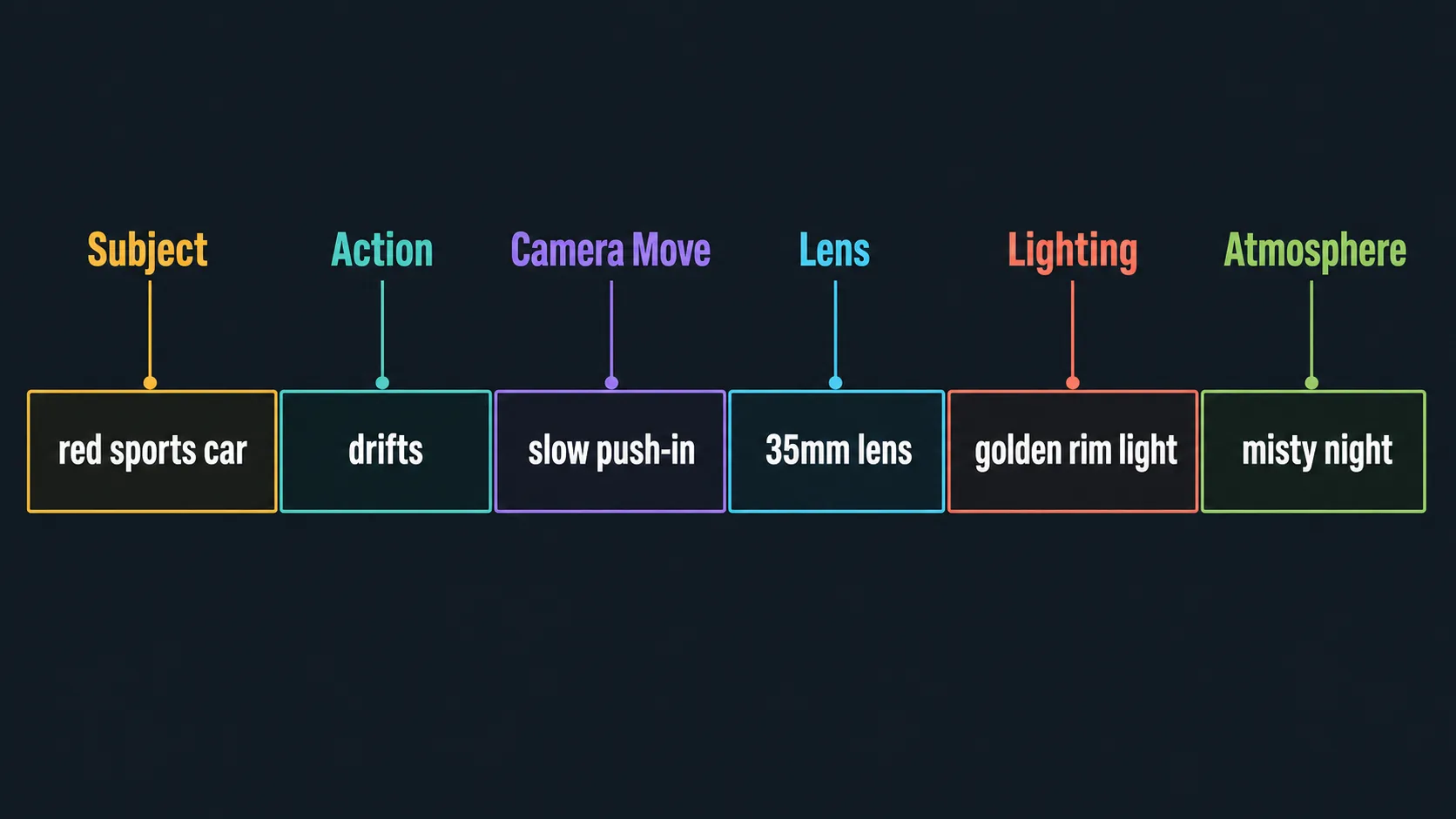
- Describe motion as a single shot, not a paragraph of mood: subject + action + camera move + lens + lighting + atmosphere. "Slow dolly-in, subject turns slightly to camera, warm light" beats three actions crammed into one prompt.
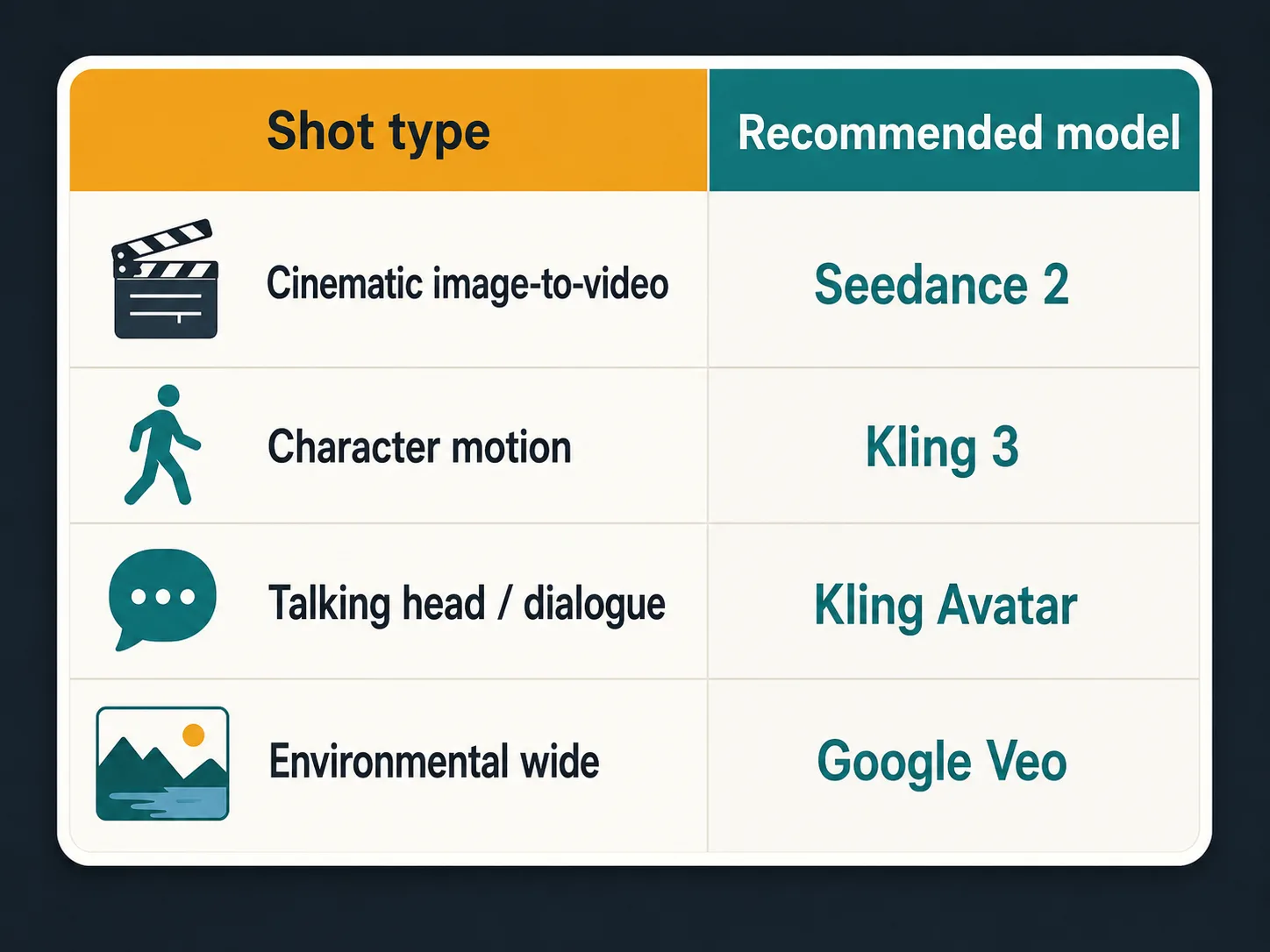
- Match the model to the shot. Seedance 2 for cinematic image-to-video, Kling 3 for character motion, Kling Avatar for talking heads, Google Veo for environmental wides — there is no single "best" image-to-video model, only the best for the shot.
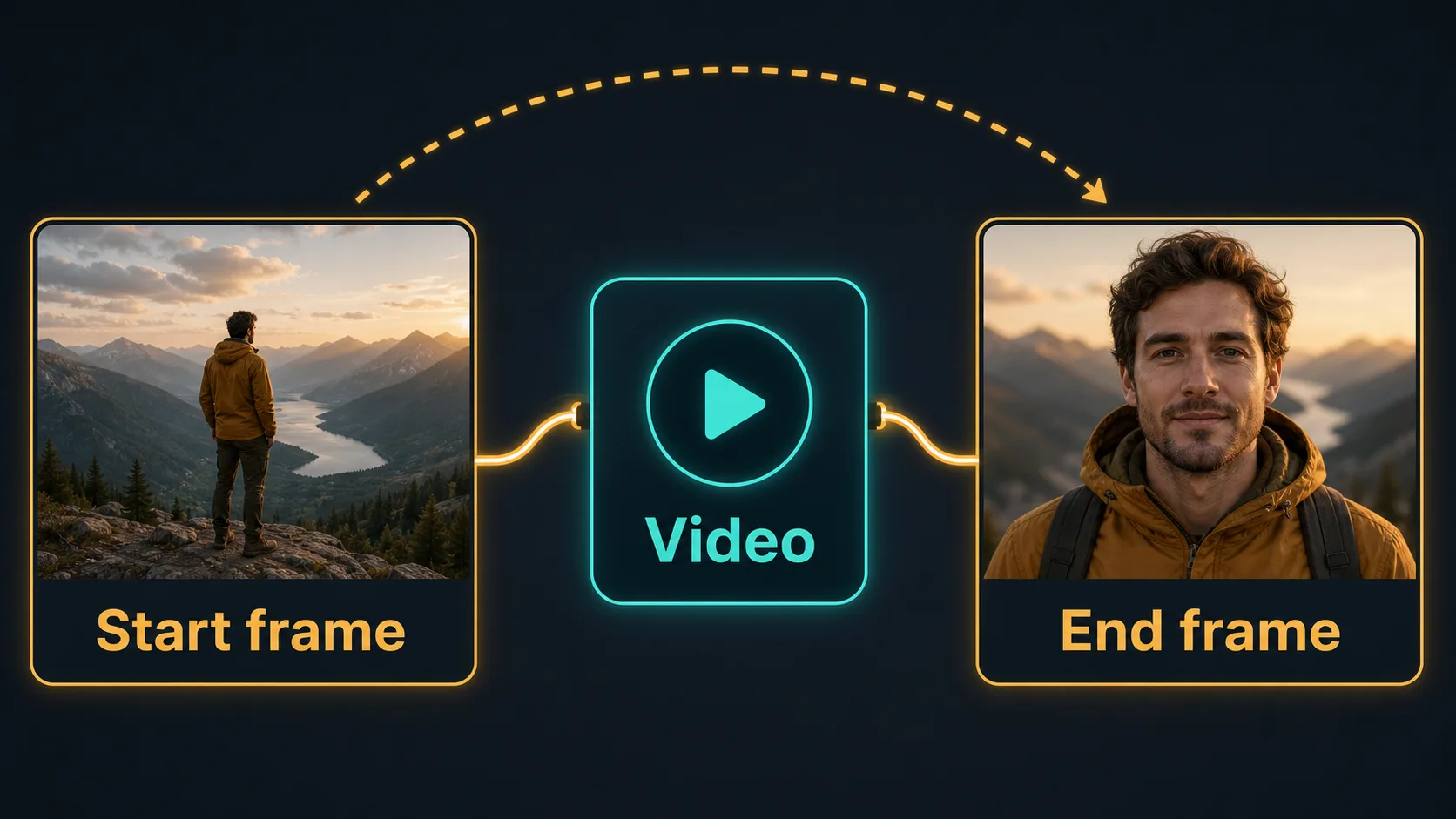
- Use start-frame and end-frame inputs when you need predictable motion. Pin the first frame for composition; add an end frame to lock where the camera or subject lands.
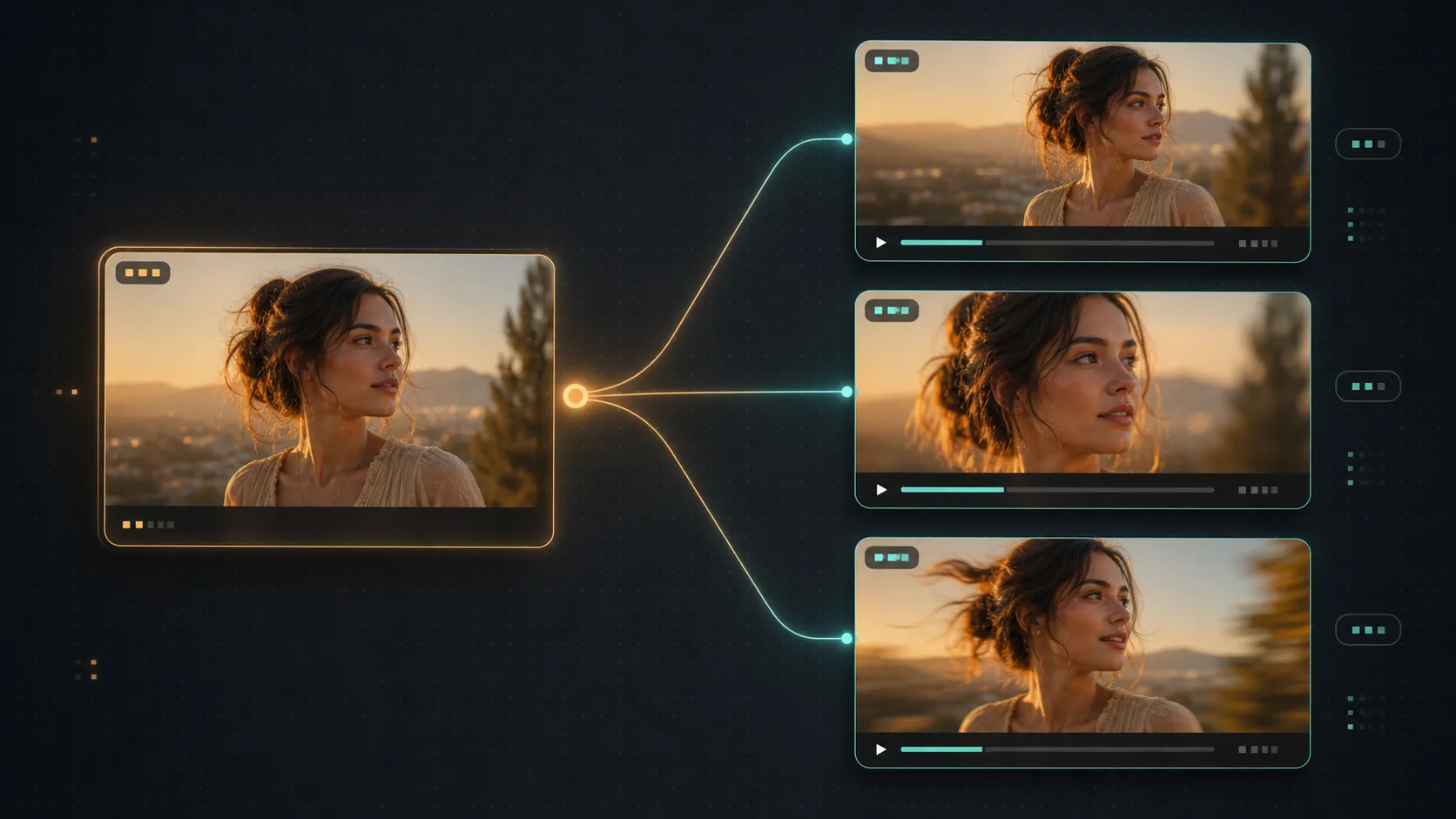
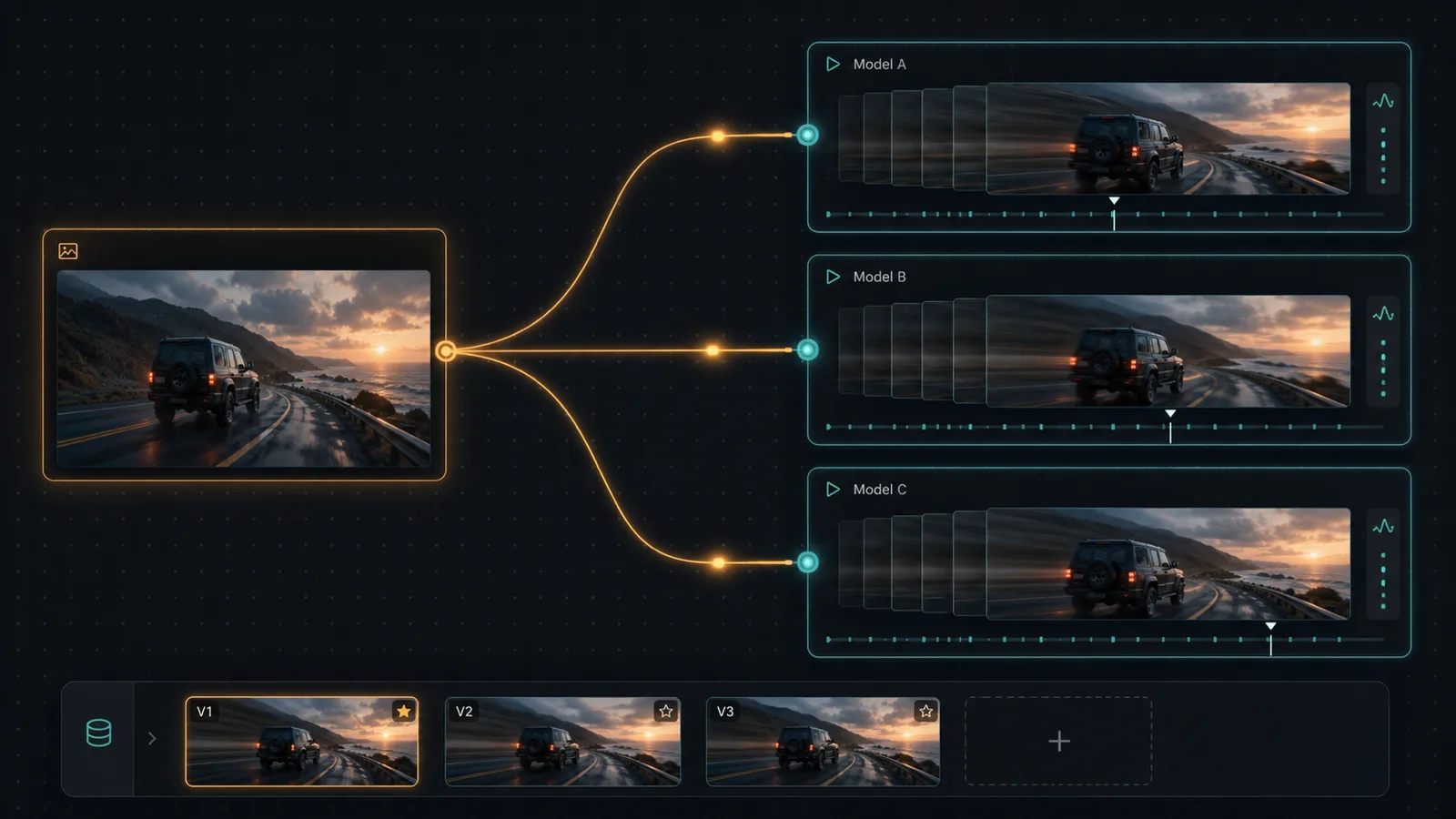
- The fan-out unlock: wire one source image into several image-to-video nodes at once, run Seedance 2, Kling 3, and Veo in parallel, keep every take in the version tray, then finish — extend, add audio, lip-sync, and export to your NLE — on the same Martini canvas.
How do I turn an image into a video with AI?
To turn an image into a video with AI, you feed a still into an image-to-video (i2v) model and prompt the motion you want — the model uses your image as the first frame or visual reference and generates a moving clip from it. The four steps that decide the result are: prepare a clean source image, pick the right i2v model for the shot, write the motion as a single camera move, and review the take. Skip any one and you lose control of the output.
Image-to-video is the dominant entry point into AI video for production teams in 2026 because it gives you control that pure text-to-video does not: you decide exactly what the frame looks like, and the model only has to decide how it moves. That is a far smaller, more predictable job than asking a model to invent a whole scene from text. The trade is that your still now carries the entire look, so it has to be composed for motion, not just for a pretty freeze frame.
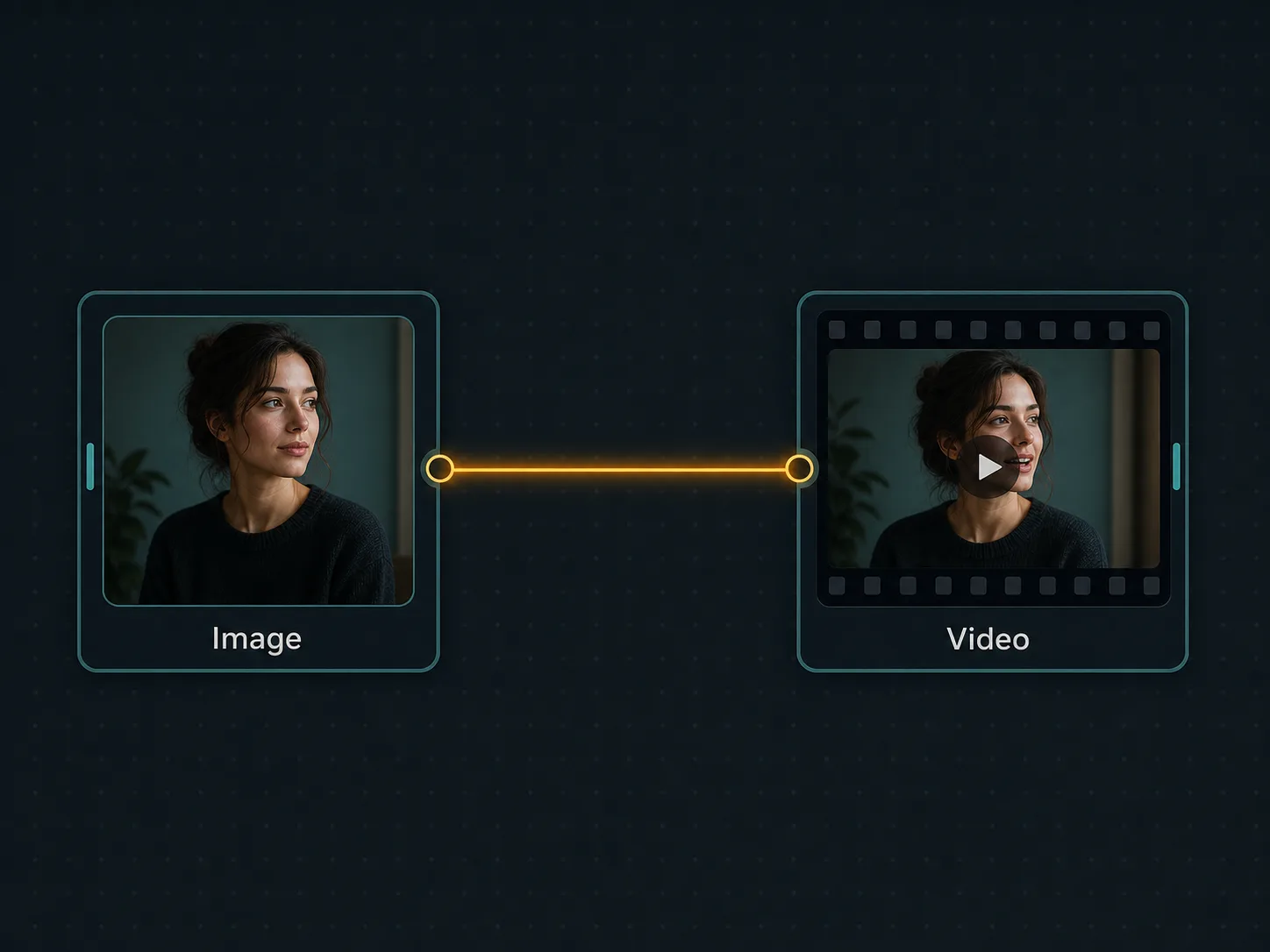
On the Martini canvas, image-to-video is a wire: an image node feeds a video node. The image node can be Nano Banana 2, GPT Image 2, Flux, or Imagen 4; the video node can be Seedance 2, Kling 3, Vidu, or Veo. Once the wire is in, you iterate the motion prompt against a fixed reference image — the loop that produces consistent, controllable output. The rest of this guide walks the six steps end to end, then shows the fan-out workflow that lets you compare several i2v models against the same image at once.
What makes a good image-to-video result
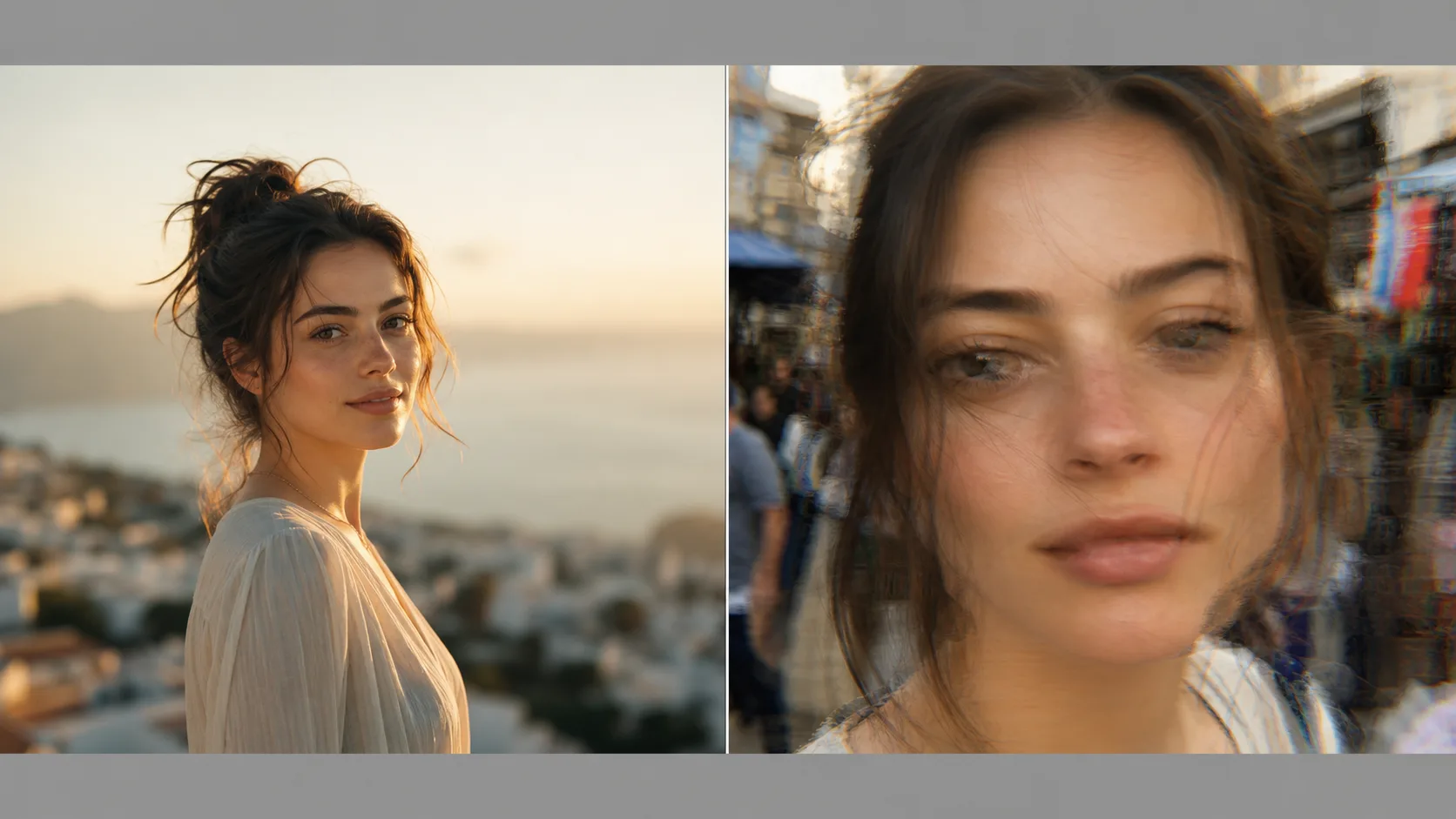
Three things separate a clean i2v take from a melting one. First, a clean source: detail-heavy backgrounds give the model conflicting signals during motion, so small elements flicker, drift, or smear as the camera moves. Second, motion described as a shot: the model wants one clear camera move and one clear subject action, the way a shot list reads, not a mood board. Third, simple motion: one action per generation. "She walks across the room, picks up the cup, then turns" is three shots — ask for all three and the model compresses them into a half-second blur.
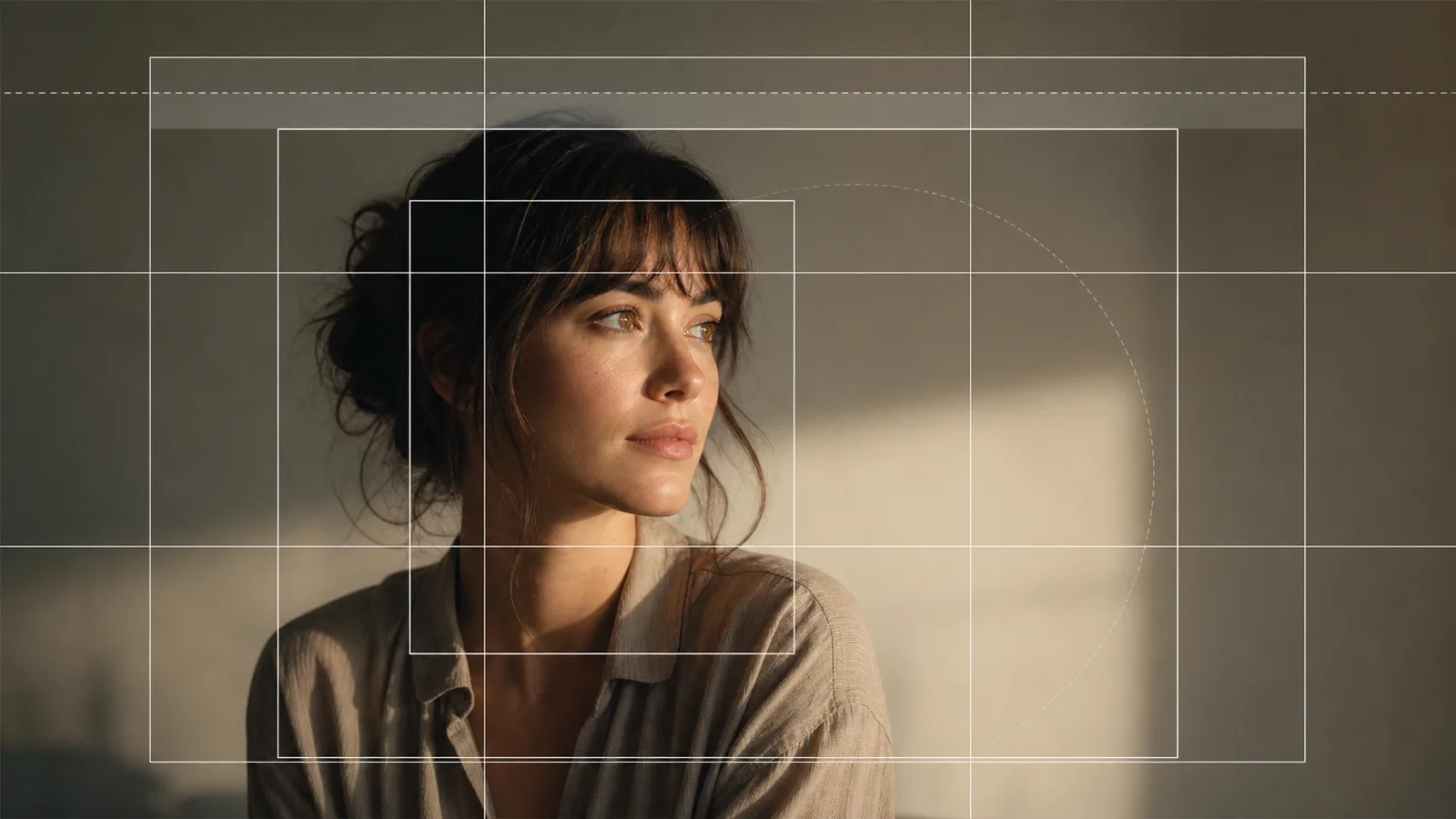
The framing rule is the one most people get wrong. A face filling 90% of the frame leaves the model no room to push in or pull back; a face at 40-50% gives it space to work. Depth-of-field cues — a foreground element, a background falloff — help the model read the spatial layout and produce a more plausible camera move. Profile shots are harder to animate than three-quarter or front views, so if you need a profile in the final clip, it is usually better to animate from three-quarter and let the model rotate into profile during the take.
A useful mental model: text-to-video asks the model to be a writer and a cinematographer at once. Image-to-video fires the writer and keeps only the cinematographer. Give that cinematographer a well-composed frame and a single, legible shot direction, and the hit rate climbs sharply.
Step 1 — Prep your source image (resolution, framing)
Start at a resolution the i2v model can use natively — most frontier video models work best from a 1024px-or-larger source at the aspect ratio you want to deliver (16:9 for landscape, 9:16 for vertical, 1:1 for square). Generate or crop the still to the final aspect ratio before you wire it in; asking the model to reframe during motion invites unwanted pans and crops.
Compose for movement. Leave headroom and lead room so the camera has somewhere to go. Keep the background simpler than you would for a poster — if the still is busy, run it through a Flux Kontext background-simplification pass first, or generate a cleaner variant with a less detailed environment. For character work, make the identity readable: face visible, lighting consistent, a three-quarter or front angle the model can extrapolate from.
On the canvas, this prep is its own node. Drop a Nano Banana 2 or Flux node, generate the source, pin the strongest take in the version tray, and keep it pinned for the rest of the workflow. Pinning matters: once the image is fixed, every motion iteration downstream changes only the prompt, never the reference — which is what makes the takes comparable.
Step 2 — Choose the right image-to-video model (the picker)
Model choice is the most consequential decision in the workflow — the wrong model for a shot fights you no matter how good the prompt is. The picker table below maps shot type to model. There is no universally "best" image-to-video model in 2026; there is only the best model for the look you are after, and the fastest way to find it is to run two or three against the same image (Step 5).
As a quick decision tree: a character speaking on camera goes to Kling Avatar; a character moving without dialogue goes to Kling 3; a cinematic shot driven by camera motion and atmosphere goes to Seedance 2; an environmental wide where the camera covers a lot of ground goes to Google Veo. Within each bucket, pick the variant by cost-quality trade-off — Seedance 2 Pro for hero shots and Lite for iteration, Kling 3.0 for hero and O3 for iteration. Vidu is a strong low-cost option for fast character-motion iteration, and Seedance 2 Omni respects image input most strongly when identity fidelity is the deciding factor.
Step 3 — Describe motion like a camera move (prompt structure)
Write every motion prompt as if you were directing one shot for a DP. The structure that holds across Seedance 2, Kling 3, and Veo is: subject + action + camera move + lens + lighting + atmosphere. Example: "the woman holds still for a beat, then slowly turns her head to camera left and offers a small smile; slow dolly-in from medium-wide to medium close-up; anamorphic 35mm lens; warm golden-hour light; faint dust in the air." That single line directs the entire take.
Use real camera grammar — dolly-in, push-in, slow pan, orbit, crane-up, rack focus, handheld drift — because the models were trained on it and respond to it. Vague intensity words ("dynamic," "epic," "cinematic") burn prompt budget on adjectives the model cannot act on. Keep it to one action per shot; split multi-action sequences into separate generations and cut them together on the canvas. This single discipline fixes most "why does my video look mushy" problems.
When you have an image wired in, drop the visual description and lean on the reference. The prompt collapses to pure motion direction: "subject begins still, slow head turn to camera left, micro-smile in the final second, slow push-in." This is the most controllable mode and the one to use for any shot that has to match other shots in a sequence — the look comes from the pinned image, the movement comes from the prompt.
Step 4 — Add start and end frames for control
When you need predictable, repeatable motion — a product that has to land label-forward, a character who must end facing camera — use start-frame and end-frame inputs. The start frame (your pinned source) locks the opening composition. The end frame tells the model where the camera or subject should finish, and it interpolates the motion between the two. This turns a fuzzy "push in a bit" instruction into a deterministic move with a defined beginning and end.
On the canvas, wire your pinned still into the i2v node as the start frame, generate or upload a second still for the end frame, and wire that in too. Generate the end frame from the same source with a small Flux Kontext or Nano Banana 2 edit — shift the camera slightly, change the subject pose — so the two frames share identity and lighting. Models that support keyframing (including the major Kling and Seedance variants) will then move cleanly from one to the other.
Start/end framing is also the most reliable way to chain shots without a visible jump cut: end one clip on a known frame, start the next clip on that same frame, and the seam disappears. It is the difference between hoping a clip lands well and directing it to.
Step 5 — Fan one image across multiple models and pick the best take
This is the step that separates Martini from single-model i2v tools. Instead of choosing one model and hoping, wire your pinned source image into several image-to-video nodes at once — Seedance 2, Kling 3, and Veo, say — paste the same motion prompt into each, and run them in parallel. Every take lands in the version tray side by side. The best motion is usually obvious on sight, and you picked it from real candidates instead of guessing from a model-comparison chart.
Fan-out is cheap when you iterate on the lighter variants (Seedance 2 Lite, Kling O3, Vidu) and reserve the hero variants for the final pass. Because the source image is pinned and shared, the only thing that varies between nodes is the model, so the comparison is clean: same frame, same prompt, different engine. This is the fastest way to answer "which model is best for image-to-video" for your specific shot — empirically, in one canvas, in the time it takes one model to render.
The same pattern scales to a multi-shot sequence. Duplicate the winning node, re-wire each duplicate to the same image, and vary the motion prompt — different camera moves, different micro-actions — to build a sequence that holds visual continuity without re-rolling the subject. Cluster the chains left to right so the canvas reads like a storyboard.
Step 6 — Finish: extend, add audio and lip-sync, export
Once you have the take, finish it on the same canvas. To go past a model length cap, chain the i2v node into a Runway Aleph or Wan continuation node — these hold the tonal grade across the splice more cleanly than re-rolling the original model, which usually leaves a visible cut. For dialogue, render the next segment in a fresh Kling Avatar node with the next audio chunk and assemble downstream.
Add sound where it belongs. Wire an ElevenLabs or Fish Audio S2 audio node into the chain for voiceover or score, and for a talking-head shot route the still and the audio into a Kling Avatar node so the mouth and micro-expressions sync to the voice. Lip-sync is a node, not a separate app — the face comes from your pinned image, the performance comes from the audio.
Finish by wiring every chosen take into the NLE export node. It assembles the takes in the order you wire them, applies cuts, and exports a single edited piece — or exports a timeline to Premiere Pro or DaVinci Resolve if you want to finish in your own editor. Change a prompt upstream and the cut updates; reorder by re-wiring. The canvas becomes the production document, not just the tool that made one clip.
How Martini changes the image-to-video workflow
Outside a canvas, image-to-video is a multi-tool relay: generate the image somewhere, download it, upload it to the video tool, prompt, download the take, then edit in a fourth app. Each handoff loses fidelity, breaks the iteration loop, and quietly makes consistency harder. Tools like OpenArt and Higgsfield teach a clean single-model i2v flow, but the model choice is locked the moment you start, and the finishing happens elsewhere.
On Martini, the whole chain — image, video, extend, audio, lip-sync, export — lives in one place with the references shared between nodes and the version tray remembering every take. The wedge is fan-out: one source image, several frontier i2v models running at once, every take compared side by side, the winner finished without leaving the canvas. Martini hosts 50+ models across image, video, audio, and 3D, so the comparison is real breadth, not two house models.
The deeper unlock is that the workflow becomes a shape you can edit. Change the source image and every downstream video node re-renders against the new reference. Swap one shot to a different model without touching the others. Reorder the cut by re-wiring the NLE node. That is the difference between making a clip and running a production.
Workflow example
Three-shot product reveal, one still to finished video on Martini: drop a Nano Banana 2 image node and generate the hero shot of the product on a marble counter, then pin the chosen take. Wire that one image into three image-to-video nodes set to different models — Seedance 2 Pro, Kling 3.0, and Veo — and paste "slow dolly-in from wide to medium close-up, hold on label, soft window light" into each. Run all three in parallel and compare the takes in the version tray. Pick the strongest motion, then duplicate that node twice for the other two shots ("macro pull-back from the cap to medium-wide" and "slow arc around the bottle, shallow depth of field"), each wired to the same image. Wire all three chosen takes into the NLE export node in order and export. Total elapsed time: roughly twenty minutes from blank canvas to finished sequence.
Recommended models
Recommended features
Related how-to guides
Related comparisons
Related reading
Seedance 2 Handbook: Variants, Best Workflows, and How to Use It on Martini
Hands-on guide to Seedance 2 — variants, strengths, and the production workflows it fits on Martini's canvas.
Kling 3 Guide: Variants, Use Cases, and How to Choose
Kling 3, O3, and Avatar variants — when to use each, on Martini.
How to Build a Consistent AI Character Across Images and Video (2026)
A 2026 workflow guide to building a consistent AI character: lock a face reference with Flux Kontext, generate a character sheet, carry identity into video with Vidu, Kling, and OmniHuman, hold consistency across multi-shot sequences, and render hero frames at 4K — all on one Martini canvas.
Frequently asked questions
- How do I turn an image into a video with AI?
- Feed a still into an image-to-video model and prompt the motion you want — the model uses your image as the first frame or reference and generates a moving clip. The four steps that decide the result: prepare a clean, well-framed source image; pick the right model for the shot; write the motion as a single camera move (subject + action + camera move + lens + lighting + atmosphere); and review the take. On Martini you wire an image node into a video node and iterate the motion prompt against the pinned image.
- Which AI model is best for image-to-video?
- There is no single best image-to-video model — it depends on the shot. Seedance 2 is strongest for cinematic image-to-video, Kling 3 for character motion, Kling Avatar for talking heads, and Google Veo for environmental wides. The fastest way to find the best one for your specific shot is to fan the same source image across two or three models at once and compare the takes directly, which is the core Martini workflow.
- How do I control the motion in an image-to-video result?
- Control motion three ways: describe it as a single camera move ("slow dolly-in, subject turns slightly to camera left"), keep it to one action per generation, and add an end frame when you need a deterministic landing point. Start-frame and end-frame inputs let the model interpolate a defined move between two stills instead of improvising. Real camera grammar — dolly, pan, orbit, rack focus — gives you more control than intensity adjectives like "dynamic" or "epic."
- Why do my image-to-video results look distorted?
- Distortion usually comes from one of three causes: a busy source image (fine background detail flickers and melts during motion), too much action crammed into one prompt (the model compresses multiple actions into a half-second blur), or no room to move (a subject filling the frame leaves the camera nowhere to go). Fix it by simplifying the background — a Flux Kontext pass works well — describing one action per shot, and framing the subject at 40-50% of the frame.
- Can I compare multiple image-to-video models at once?
- Yes — on the Martini canvas you wire one source image into several image-to-video nodes (for example Seedance 2, Kling 3, and Veo), paste the same motion prompt into each, and run them in parallel. Every take lands in the version tray side by side so you can pick the best motion from real candidates. Single-model tools like OpenArt and Higgsfield lock you to one engine per generation; fan-out is the Martini difference.
- How long can an image-to-video clip be?
- Most frontier image-to-video models generate clips in the 5-to-10-second range natively as of 2026, with exact caps varying by model and variant. To go longer, chain the clip into a continuation node — Runway Aleph or Wan hold the tonal grade across the splice most cleanly, whereas re-rolling the same model usually leaves a visible cut. On Martini you chain continuation nodes and assemble everything in the NLE export node for a single finished piece.
- Do I need to download the image and re-upload it to the video tool?
- No — that round-trip is exactly what the Martini canvas removes. The source image stays pinned in the canvas and every video node references it directly, so you iterate the motion prompt without ever re-uploading. Keeping the image fixed is also what makes takes comparable across iterations and across models, since the only thing that changes is the prompt or the engine.
- How do I keep the same character consistent across image-to-video shots?
- Generate the character once with Nano Banana 2, pin the still, and wire that same image into every video node in the sequence — identity carries through because the reference is shared. Use the variants that respect image input most strongly, such as Seedance 2 Omni or Kling Avatar. For the full reference-library method, see the consistent AI character guide.
Ready to try it on the canvas?
Open Martini and fan your prompt across every frontier model in one workflow.