2 Models Available
How to Extract Frames From AI Video
A director pulls the strongest frame from a 5-second AI video clip and uses it as the reference image for the next shot in the sequence. On Martini's canvas, route the source clip (Seedance 2, Kling 3, etc.) into the frame-extraction tool node, scrub to the chosen timestamp, then chain the extracted still into a Nano Banana 2 image edit or directly into the next video node as a starting frame. Output is a reference-locked frame for next-shot starting frames, image-edit chains, or hero stills from approved video takes. Pick a model below to walk through the frame harvest workflow.
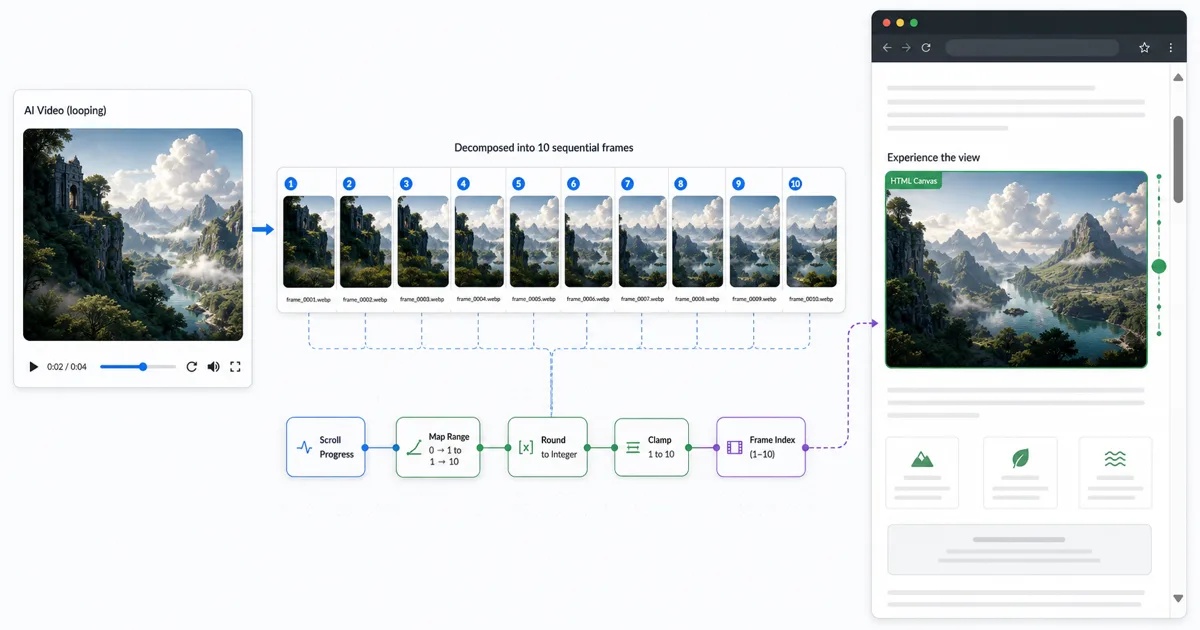
The scroll-animation pipeline: generate an AI video, extract frames, scrub on a canvas
To extract frames from an AI video for a scroll-synced canvas animation, you run a five-stage pipeline: generate a loopable clip, export the clip to a numbered frame sequence with FFmpeg, triage and convert those frames to WebP, draw the current frame onto an HTML <canvas> with drawImage(), and drive the frame index from scroll position using GSAP ScrollTrigger. The result is an Apple-style "scrub" where scrolling plays the clip frame-by-frame on a canvas instead of a stuttery <video> element.
Every competing tutorial (Codrops, Builder.io, Tympanus) starts from a video file you already have and only teaches the FFmpeg and GSAP half. Martini collapses the upstream half onto one node-based canvas: you generate a perfectly loopable AI clip with start-and-end-frame control, extract and triage frames, and optionally 4K-upscale the hero frames before a single line of code is written. The deliverable handed to GSAP is a clean, deduplicated WebP sequence rather than a smeared screen-record.
The pipeline reads left to right as four hops: (1) Generate the loop on the Martini canvas with a video model, (2) Extract the frame sequence (in-canvas frame extraction or the FFmpeg fallback below), (3) Triage and optionally upscale the hero frames, (4) Render the sequence to a <canvas> with GSAP ScrollTrigger. Steps 1 through 3 are creative work that belongs on a canvas; step 4 is the code you ship. The sections below cover each stage with copy-pasteable commands.
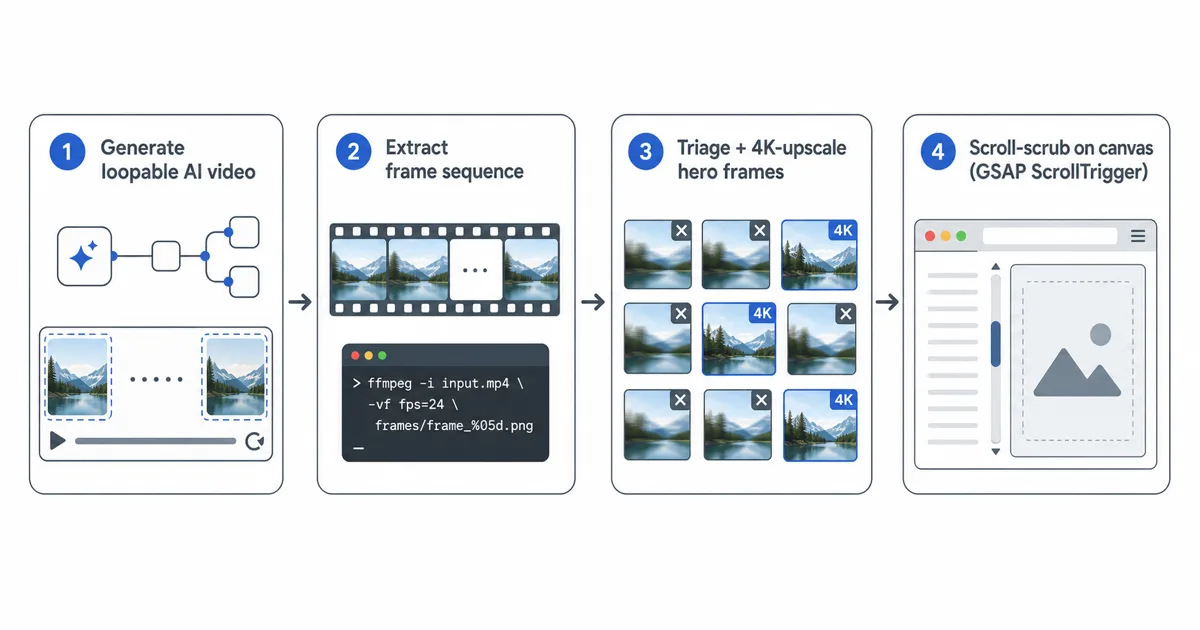
Step 1: Generate a loopable AI video on the Martini canvas
A scroll-scrub looks broken if the clip jump-cuts when it loops, so the source video has to loop cleanly. On the Martini canvas, drop a video node and use first-and-last-frame control: set the same image as both the start frame and the end frame, and the model interpolates a motion path that returns to where it began. Models that support first-and-last-frame conditioning include Kling, Luma, Runway, and Seedance; text-to-video models like Veo, Sora, and Wan are better for clips where a seamless loop is not required.
Wire the prompt and the start/end frame into several video nodes at once and run the fan-out: one source image into Kling 3, Seedance 2, and Runway Gen-4 simultaneously, then keep every take in the version tray and pick the cleanest loop. This is the part competitors cannot do from a bare video file — you are choosing the best raw material before extraction, not salvaging whatever you already shot.
Keep the clip short and the motion continuous. A 3-to-5-second loop at 24-30 fps yields roughly 72-150 source frames, which is the right order of magnitude for a scroll sequence (you will thin it down in Step 3). Avoid hard cuts, fast pans, and heavy motion blur inside the clip; those produce smeared frames that look fine in motion but ugly when a user parks mid-scroll on a single frame.
Step 2: Extract the frame sequence (in-canvas + the FFmpeg fallback)
There are two ways to turn the clip into stills. On the Martini canvas, route the approved video into the frame-extraction tool node and scrub to harvest individual hero frames — fast when you need a handful of clean stills for an image-edit chain or a next-shot starting frame. For a full, evenly-spaced sequence destined for a scroll-scrub, export the clip and run FFmpeg, the de-facto standard the developer SERP expects to see.
The command below writes a numbered PNG per source frame. Use -vf fps=30 to resample to a fixed 30 frames per second regardless of the clip's native rate, and zero-pad the index so the files sort correctly. PNG first keeps the extraction lossless; you convert to WebP in the next command.
Convert the PNG sequence to WebP to cut payload by 60-80% with no visible quality loss at scroll-scrub sizes. WebP is the format you actually ship to the browser — a 150-frame PNG sequence can be 40 MB+, while the same sequence in quality-80 WebP is often under 8 MB. Loop the directory with cwebp, or have FFmpeg emit WebP directly.
Drop the finished sequence into your Next.js project under public/frames/ so the files serve from a stable, cache-friendly path (for example /frames/frame_0001.webp). Numbered, zero-padded filenames let you build the URL for any index with simple string interpolation in Step 4.
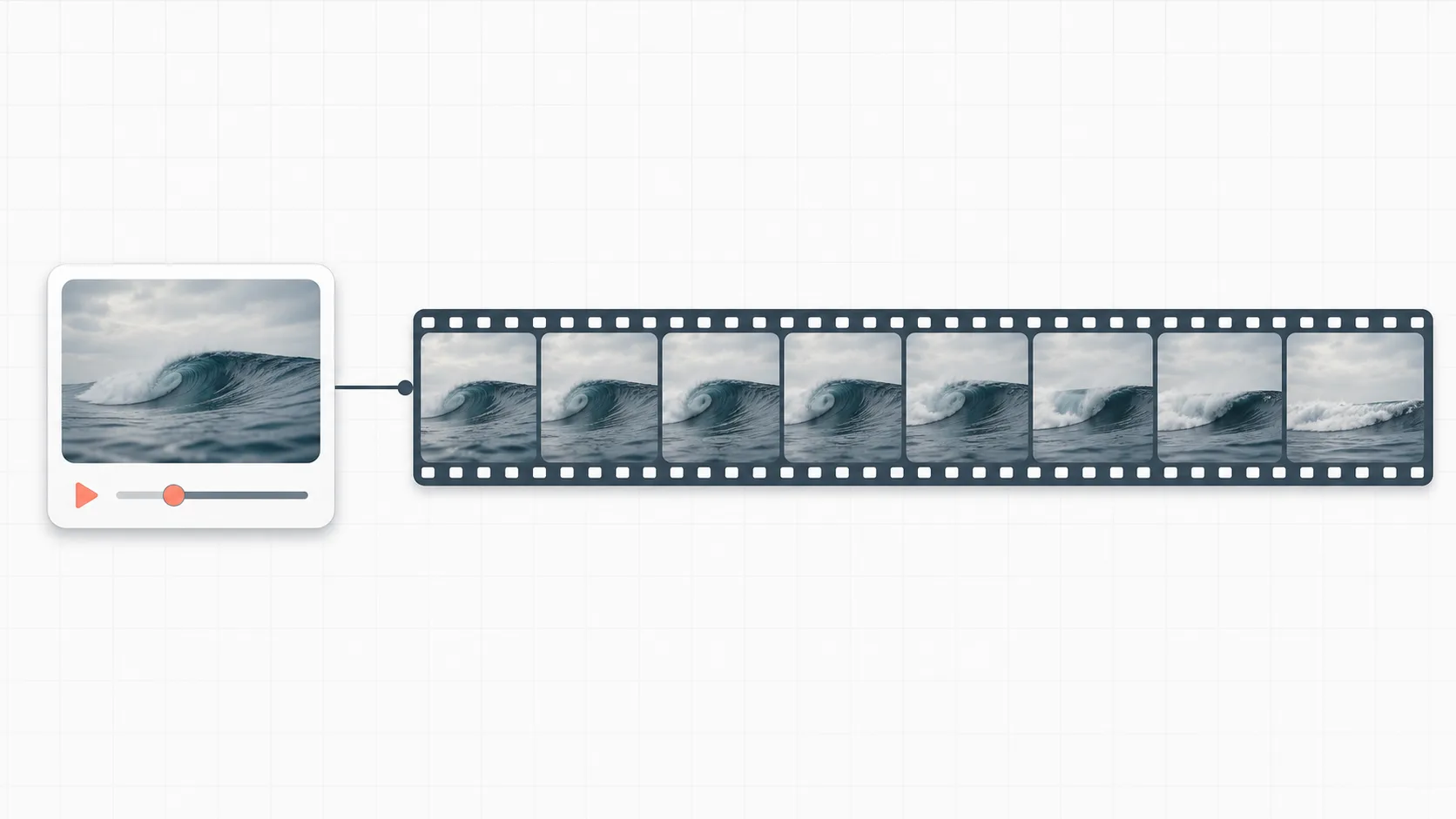
FFmpeg — extract a numbered frame sequence at 30fps
# Resample to a fixed 30fps and write zero-padded PNG frames
ffmpeg -i input.mp4 -vf "fps=30" frames/frame_%04d.png

# Variant: keep the clip's native frame rate (one PNG per source frame)
ffmpeg -i input.mp4 frames/frame_%04d.png
WebP conversion — shrink the payload 60-80%
# Convert every PNG in the folder to quality-80 WebP
for f in frames/*.png; do
  cwebp -q 80 "$f" -o "${f%.png}.webp"
done

# Or have FFmpeg emit WebP directly (skip the PNG step)
ffmpeg -i input.mp4 -vf "fps=30" -quality 80 public/frames/frame_%04d.webp
Step 3: Triage the hero frames (and optionally 4K-upscale)
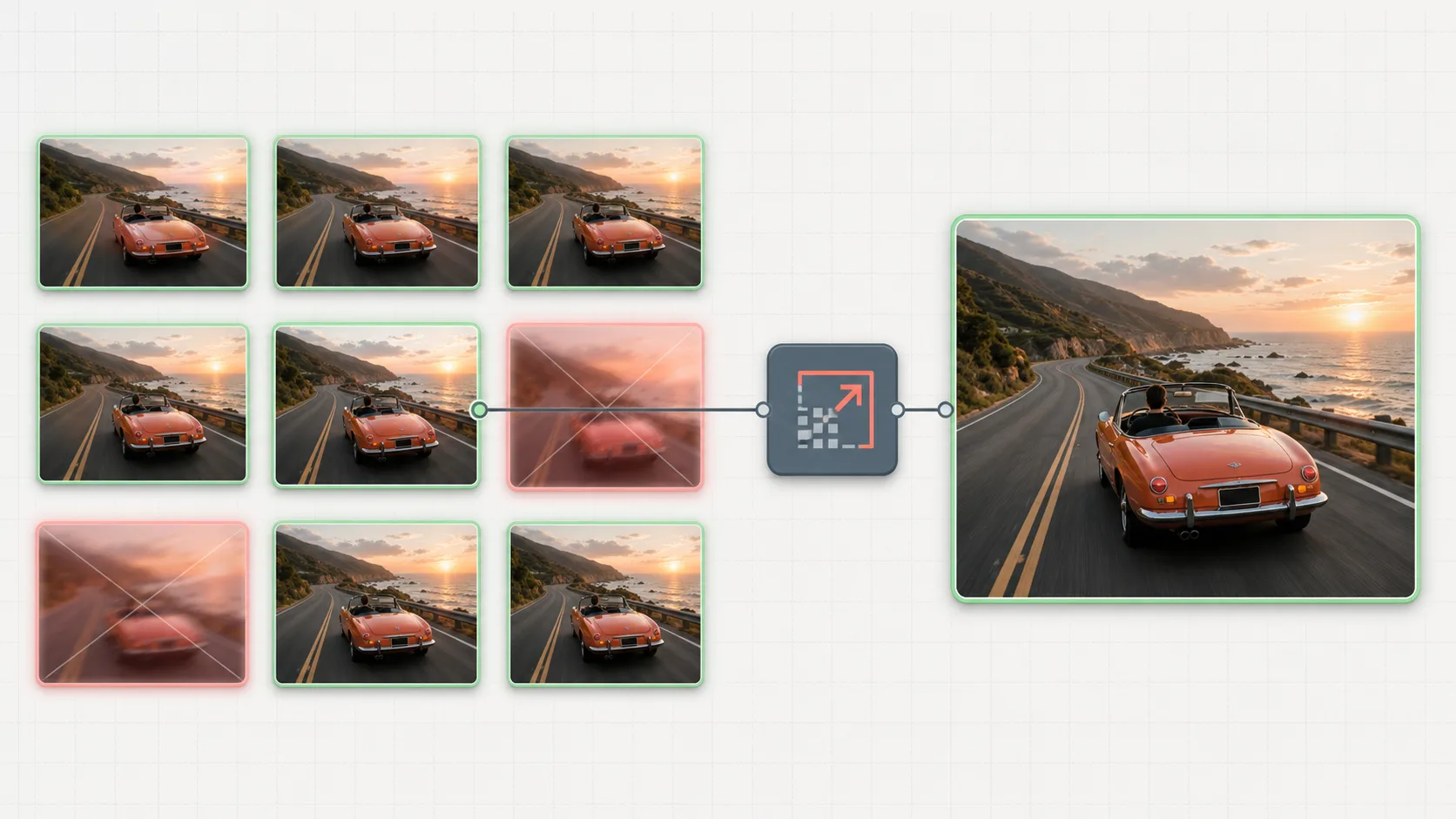
AI video has soft frames: motion-blurred in-betweens, occasional warping, and the odd artifact. Before you ship the sequence, lay the frames out on the Martini canvas and triage — delete smeared frames, keep the crisp ones, and check that the loop's first and last frame match so the scrub wraps cleanly. Thinning a 150-frame export down to a clean 90 also lightens the payload the browser has to preload.
If a hero frame will be parked on-screen at full width — a title moment, a product close-up — upscale it to 4K so it stays sharp on Retina displays. Route the chosen frame through an upscale tool node, then drop the result back into the sequence. For the resolution math and use-case-by-use-case guidance, see the companion guide on how to upscale images to 4K; for upscaling the whole clip instead of a single frame, see how to upscale video to 4K.
A reference-clean frame is reusable beyond the scroll-scrub: feed it back into a Nano Banana 2 image-edit chain, or use it as the start frame for the next video node so the next shot inherits the exact look. This is the same frame-harvest move used to extend a clip — extract the last good frame and feed it as the first-frame input for the next image-to-video generation (see how to extend video clips).
Step 4: Render the sequence to a <canvas> with GSAP ScrollTrigger
Now the code half. Preload the WebP sequence into an array of Image objects, draw the current frame onto a <canvas> with drawImage(), and let GSAP ScrollTrigger map scroll progress to a frame index. As the user scrolls a tall pinned section, the index ticks from 0 to the last frame and the canvas redraws — that is the entire scrub.
Two details separate a sharp scrub from a blurry, ghosting one. First, scale the canvas by window.devicePixelRatio so it renders at native resolution on Retina screens, then size it down with CSS — drawing at logical pixels on a high-DPI screen produces a soft image. Second, call ctx.clearRect() (or draw an opaque frame that fully covers the canvas) before each drawImage(), or semi-transparent frames will stack and leave ghost trails.
The snippet below is the load-bearing pattern: a render(index) function, devicePixelRatio scaling in a setupCanvas() helper, clearRect before every draw, and a ScrollTrigger whose onUpdate snaps self.progress to the nearest frame. Adjust frameCount and the /frames/ path to match your export from Step 2.
GSAP ScrollTrigger + canvas image-sequence scrub
import gsap from "gsap";
import { ScrollTrigger } from "gsap/ScrollTrigger";
gsap.registerPlugin(ScrollTrigger);

const canvas = document.querySelector("#sequence");
const ctx = canvas.getContext("2d");
const frameCount = 90;
const frames = [];

// High-DPI scaling: draw at native resolution, size down with CSS
function setupCanvas(w, h) {
  const dpr = window.devicePixelRatio || 1;
  canvas.width = w * dpr;
  canvas.height = h * dpr;
  canvas.style.width = w + "px";
  canvas.style.height = h + "px";
  ctx.scale(dpr, dpr);
}
setupCanvas(1280, 720);

// Preload the zero-padded WebP sequence from /public/frames
for (let i = 0; i < frameCount; i++) {
  const img = new Image();
  img.src = `/frames/frame_${String(i + 1).padStart(4, "0")}.webp`;
  frames.push(img);
}

const state = { frame: 0 };
function render(index) {
  ctx.clearRect(0, 0, canvas.width, canvas.height); // kill ghosting
  ctx.drawImage(frames[index], 0, 0, 1280, 720);
}
frames[0].onload = () => render(0);

// Map scroll progress to a frame index
gsap.to(state, {
  frame: frameCount - 1,
  snap: "frame",
  ease: "none",
  scrollTrigger: {
    trigger: "#sequence-section",
    start: "top top",
    end: "+=3000",
    scrub: 0.5,
    pin: true,
    onUpdate: (self) => {
      const i = Math.round(self.progress * (frameCount - 1));
      render(i);
    },
  },
});
Step 5: Performance — frame counts, preloading, and WebP
A scroll-scrub is a preloading problem. The browser has to fetch enough frames to redraw without gaps, so tune the frame count to the device: roughly 90-150 frames for desktop, and a thinned 30-60 for mobile, where bandwidth and memory are tighter. Serve a separate, smaller WebP set to small viewports rather than forcing phones to download the desktop sequence.
Preload directionally and in stages. Load the first 10-20 frames eagerly so the section is interactive immediately, then stream the rest in the background; if you know the user is scrolling down, preload ahead of the current index rather than uniformly. Decode frames off the main thread with createImageBitmap() where supported so drawImage() never blocks the scroll.
WebP is doing the heavy lifting on payload. At quality 75-85 the per-frame size is small enough that even a 150-frame desktop sequence stays in single-digit megabytes, which is what makes the eager preload feasible without a long blank state. If a sequence still feels heavy, drop the frame count before you drop the quality — the human eye tolerates fewer frames far better than it tolerates a soft, low-quality frame parked mid-scroll.
Why a canvas image sequence beats a scrubbed <video> on the web
You could point GSAP at a <video> and set currentTime from scroll, and it will look fine on your dev machine — then stutter on real devices. Browsers do not seek video frame-accurately: setting currentTime snaps to the nearest keyframe, so scrubbing a heavily-compressed clip jumps and judders. Mobile browsers also throttle or block programmatic playback under autoplay policies, and decoding a keyframe on every scroll tick is expensive.
A canvas image sequence sidesteps all of it. Each frame is a discrete, fully-decoded image, so render(index) is frame-accurate by construction — scroll to 47% and you get exactly that frame, every time, with no keyframe snapping. There is no autoplay policy to fight because nothing is "playing"; you are drawing a still. The trade is upfront payload (you preload the frames), which is exactly what WebP plus device-specific frame counts are for.
This is why the dev SERP for scroll-scrub animations is unanimous on the canvas approach. Martini's contribution is upstream: it owns the generate-extract-triage steps so the frames you hand to this canvas pattern are clean, loopable, and 4K where it counts — instead of whatever you could screen-record from an existing file.
Choose a Model to Get Started
ByteDance
Seedance 2.0
Seedance 2.0 is the upstream video model whose clean 1080p output makes frame extraction productive — its frames are well-composed, stable, and high-detail enough to serve as image-edit inputs or static deliverables. The pipeline is: generate or take an approved Seedance clip → route through the frame extraction tool node → pick the strongest frame(s) for the next step. Common downstream uses: feed the extracted frame as a reference image to a Nano Banana 2 or Flux Kontext image edit, use it as the starting frame for a different camera move on Sora 2 or Kling 3.0, or export as a static hero image. The companion `tools/frame-extraction` page covers tool routing and parameters; this how-to focuses on the Seedance-paired pipeline.
Kling
Kling 3.0
Kling 3.0 is the upstream pick when the frames you want to extract feature human or humanoid performers — its anatomically accurate body, face, and clothing motion produces per-frame stills that hold up as image-edit inputs or static deliverables far better than other video models at equivalent settings. The pipeline is identical to Seedance: generate or take an approved Kling clip → route through the frame extraction tool node → pick the strongest frame for the next step. Common downstream uses for Kling-sourced extractions: AI character sheets (extract a single mid-clip frame and feed to Nano Banana 2 for outfit variants), starting frames for a new camera-move shot featuring the same character, or hero stills for branded marketing where talent presence is the point. The companion `tools/frame-extraction` page covers tool routing; this how-to focuses on the Kling-paired pipeline.
Frequently Asked Questions
How do I extract frames from an AI-generated video?
Export the clip to a numbered image sequence with FFmpeg — ffmpeg -i input.mp4 -vf "fps=30" frames/frame_%04d.png — then convert to WebP for the web. On the Martini canvas you can also route the video into the frame-extraction tool node and scrub to harvest individual hero frames without leaving the canvas.
What FFmpeg command extracts frames at 30fps?
Use ffmpeg -i input.mp4 -vf "fps=30" frames/frame_%04d.png. The -vf "fps=30" filter resamples the clip to a fixed 30 frames per second regardless of its native rate, and frame_%04d.png zero-pads the index so the files sort correctly into a sequence.
Why use a canvas image sequence instead of a scrubbed video for scroll animations?
A canvas image sequence is frame-accurate and stutter-free, while a scrubbed <video> is not. Setting a video element's currentTime snaps to the nearest keyframe, so scrubbing a compressed clip judders, and mobile autoplay policies can block programmatic playback entirely. Drawing discrete pre-decoded frames to a <canvas> gives you exact, smooth control at the cost of an upfront preload.
How many frames do I need for a smooth scroll animation?
Roughly 90-150 frames for a desktop scroll-scrub and a thinned 30-60 frames for mobile. More frames mean smoother motion but a heavier preload, so serve a smaller WebP set to small viewports and reduce the frame count before you reduce per-frame quality if the payload feels heavy.
How do I sync a canvas frame sequence to scroll with GSAP ScrollTrigger?
Preload the frames into an array, then create a ScrollTrigger whose onUpdate converts self.progress into a frame index — const i = Math.round(self.progress * (frameCount - 1)) — and calls render(i), which clears the canvas and draws frames[i]. Pin the section and set scrub so scroll position maps directly to playback position.
How do I keep a canvas frame sequence sharp on high-DPI/Retina screens?
Scale the canvas by window.devicePixelRatio. Multiply canvas.width and canvas.height by the device pixel ratio, set the CSS width/height to the logical size, and call ctx.scale(dpr, dpr) — this renders at native resolution instead of soft logical pixels. Also call ctx.clearRect() before every drawImage() to prevent semi-transparent frames from ghosting.
Can I generate the source video and extract frames in one tool?
Yes — that is Martini's edge. On one node-based canvas you generate a loopable AI clip with first-and-last-frame control across models like Kling, Seedance, and Runway, extract and triage the frames, and optionally 4K-upscale the hero frames, then export the clean WebP sequence to your /public/frames folder for GSAP. Competing tutorials start from a video file you already have; Martini owns the upstream generate-extract-triage half of the pipeline.